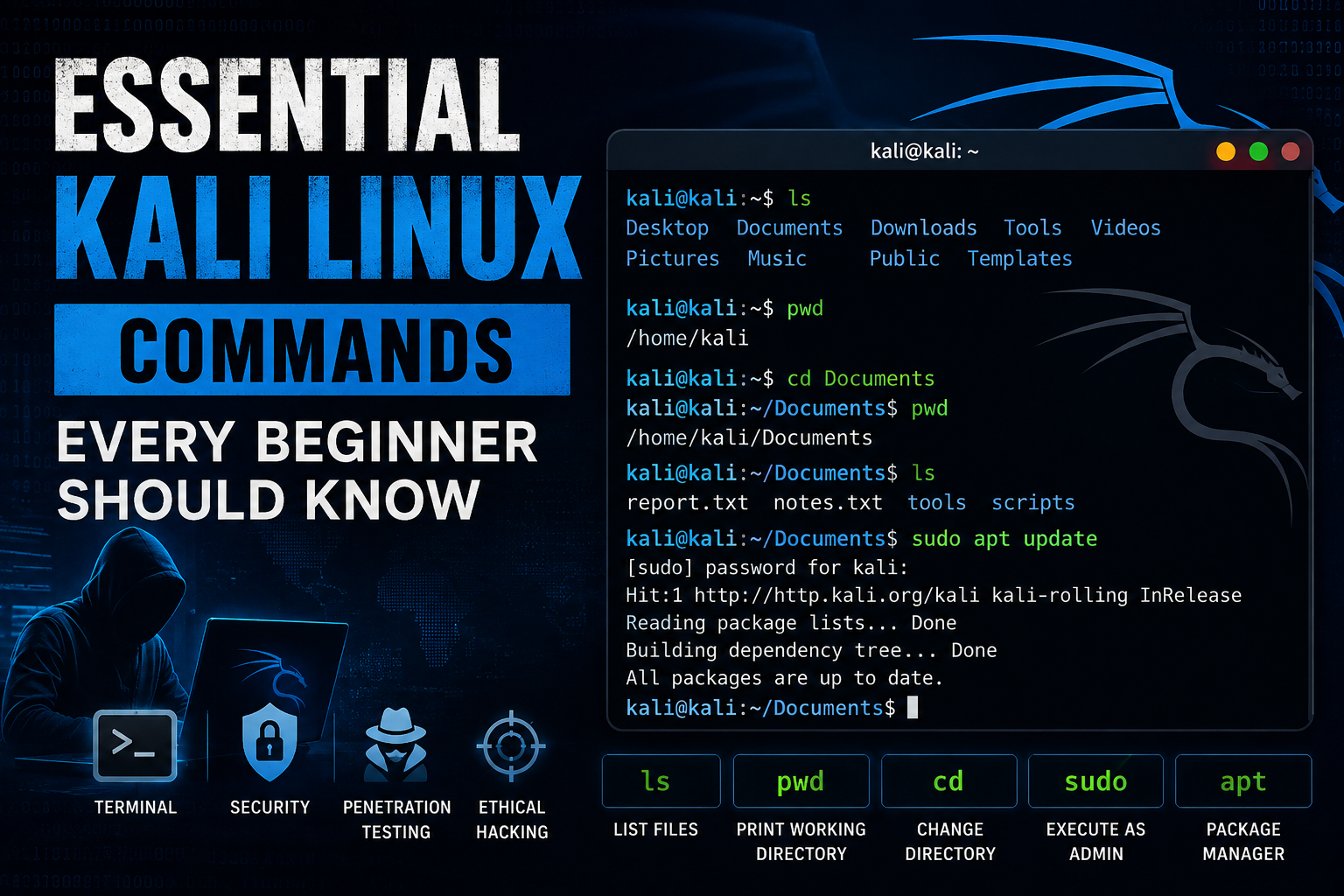
Essential Kali Linux Commands Every Beginner Should Know
Kali Linux is one of the most popular Linux distributions for cybersecurity professionals, penetration testers, ethical hackers, and security researchers. Built on Debian, Kali comes with hundreds of security tools, but before using advanced applications, every beginner should understand the Linux command line.
Knowing the basic commands allows you to navigate the operating system, manage files, install software, troubleshoot issues, and work more efficiently inside the terminal.
In this guide, you’ll learn the most important Kali Linux commands every beginner should know, complete with explanations and examples.
Why Learn Kali Linux Commands?
Unlike Windows, Linux relies heavily on the terminal. Many cybersecurity tools are designed to be executed from the command line, making terminal knowledge an essential skill.
Learning Linux commands helps you:
- Navigate directories quickly
- Manage files efficiently
- Install and update software
- Configure networking
- Monitor running processes
- Manage permissions
- Become comfortable with penetration testing tools
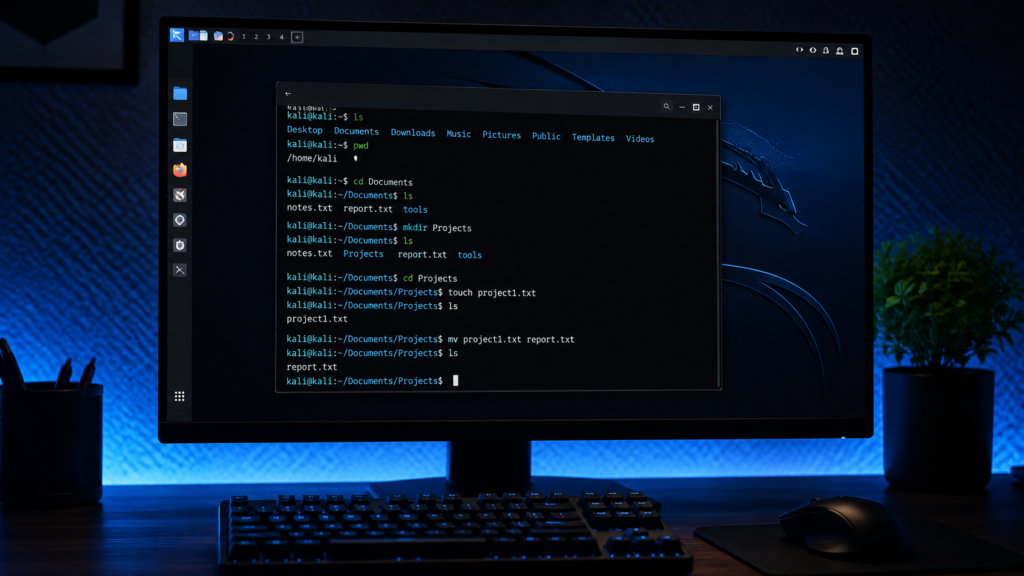
1. pwd – Show Current Directory
The pwd command displays your current working directory.
pwdExample output:
/home/kali/DocumentsUse this command whenever you’re unsure of your current location in the filesystem.
2. ls – List Files and Directories
The ls command shows the contents of the current directory.
lsUseful options:
ls -lDisplays detailed information.
ls -aShows hidden files.
ls -lhDisplays human-readable file sizes.
3. cd – Change Directory
Move between folders using the cd command.
cd DocumentsGo back one directory:
cd ..Go to your home folder:
cd ~Go to the root directory:
cd /4. mkdir – Create a Directory
Create new folders.
mkdir ProjectsCreate nested directories:
mkdir -p Pentesting/Reports5. rm – Remove Files
Delete files using:
rm file.txtDelete directories:
rm -r folderForce deletion:
rm -rf folderWarning: The rm -rf command permanently deletes files and folders without sending them to a recycle bin.
6. cp – Copy Files
Copy a file:
cp file.txt backup.txtCopy an entire folder:
cp -r Folder Backup7. mv – Move or Rename Files
Move a file:
mv report.txt Documents/Rename a file:
mv old.txt new.txt8. touch – Create Empty Files
Create a new file instantly.
touch notes.txt9. cat – Display File Contents
View a text file.
cat notes.txtCombine files:
cat file1.txt file2.txt10. nano – Edit Files
Nano is one of the easiest terminal text editors.
nano notes.txtUseful shortcuts:
- Ctrl + O → Save
- Ctrl + X → Exit
- Ctrl + K → Cut line
- Ctrl + U → Paste
11. sudo – Run Commands as Administrator
Some commands require root privileges.
sudo apt updateYou’ll be prompted for your password before execution.
12. apt – Install and Update Software
Update package lists:
sudo apt updateUpgrade installed packages:
sudo apt upgradeInstall software:
sudo apt install nmapRemove software:
sudo apt remove package-name13. whoami – Display Current User
Check which user you’re logged in as.
whoamiExample:
kali14. clear – Clear the Terminal
Clean your terminal screen.
clearShortcut:
Ctrl + L15. history – View Previous Commands
Show command history.
historyRun a previous command:
!2516. ifconfig or ip – View Network Information
Modern Linux systems use:
ip addrOlder systems may use:
ifconfigThese commands display IP addresses, interfaces, and network status.
17. ping – Test Network Connectivity
Check whether a host is reachable.
ping google.comStop the process with:
Ctrl + C18. find – Search for Files
Locate files by name.
find /home -name report.txtSearch the entire system:
find / -name "*.pdf"19. chmod – Change File Permissions
Make a script executable.
chmod +x script.shSet specific permissions.
chmod 755 script.sh20. man – View Command Documentation
Every Linux command includes a manual page.
man lsExit the manual by pressing:
qBonus Commands Worth Learning
| Command | Purpose |
|---|---|
echo | Print text |
hostname | Show system name |
date | Display current date and time |
df -h | Show disk usage |
du -sh | Check folder size |
free -h | Display RAM usage |
top | Monitor running processes |
ps | Show active processes |
kill | Terminate a process |
uname -a | Display kernel information |
Common Keyboard Shortcuts
| Shortcut | Action |
|---|---|
| Ctrl + C | Stop current process |
| Ctrl + L | Clear screen |
| Ctrl + R | Search command history |
| Tab | Auto-complete commands |
| Up Arrow | Previous command |
| Down Arrow | Next command |
| Ctrl + D | Log out of terminal |
| Ctrl + Z | Suspend current process |
Tips for Kali Linux Beginners
- Practice commands in a virtual machine before using them on a production system.
- Avoid running destructive commands like
rm -rfunless you’re certain of their impact. - Use
manpages to understand command options and syntax. - Keep your system updated with
sudo apt update && sudo apt upgrade. - Learn basic Linux concepts before diving into penetration testing tools.
Frequently Asked Questions
1. Is Kali Linux suitable for beginners?
Yes. While Kali Linux is designed for cybersecurity professionals, beginners can learn it effectively by first understanding basic Linux commands and system navigation.
2. Do I need to memorize all Kali Linux commands?
No. Focus on commonly used commands such as ls, cd, pwd, cp, mv, rm, and apt. Over time, you’ll naturally remember them through regular use.
3. What is the most important Kali Linux command?
There isn’t a single most important command, but ls, cd, pwd, sudo, and apt are among the most frequently used by beginners and experienced users alike.
4. Is Kali Linux only for hacking?
No. Kali Linux is intended for ethical hacking, penetration testing, digital forensics, and security research. It should only be used on systems you own or have explicit permission to test.

Conclusion
Learning the essential Kali Linux commands is the first step toward becoming comfortable with Linux and cybersecurity. These commands form the foundation for managing files, installing software, configuring networks, and using the powerful security tools included with Kali Linux.
Practice them regularly in your terminal, experiment in a safe environment, and gradually build your confidence before moving on to advanced penetration testing and automation tasks.
Internal Link Suggestions
- How to Take a Screenshot in Kali Linux
- How to Install Software on Kali Linux Using APT
- Best Kali Linux Tools for Beginners
- Kali Linux Keyboard Shortcuts
- Linux Terminal Cheat Sheet
Recommended External Links for This Article
- Kali Linux Official Website: https://www.kali.org/
- Kali Linux Documentation: https://www.kali.org/docs/
- Debian APT Documentation: https://wiki.debian.org/Apt
- GNU Core Utilities: https://www.gnu.org/software/coreutils/
- Linux Manual Pages: https://man7.org/linux/man-pages/
Explore More on Voltixaz
Continue exploring the latest technology content with our other categories:
- Artificial Intelligence – Discover AI news, tutorials, tools, and practical guides.
- Windows – Learn Windows tips, troubleshooting, updates, and optimization techniques.
- Linux – Explore Linux tutorials, terminal commands, distributions, and open-source news.
- Smartphones – Read smartphone reviews, buying guides, software updates, and mobile tips.
- Cybersecurity – Stay protected with online security guides, privacy tips, and the latest cyber threat updates.
- Tech News – Keep up with breaking technology news, product launches, and industry trends.
- Reviews & Buying Guides – Make informed decisions with expert product reviews and detailed buying advice.