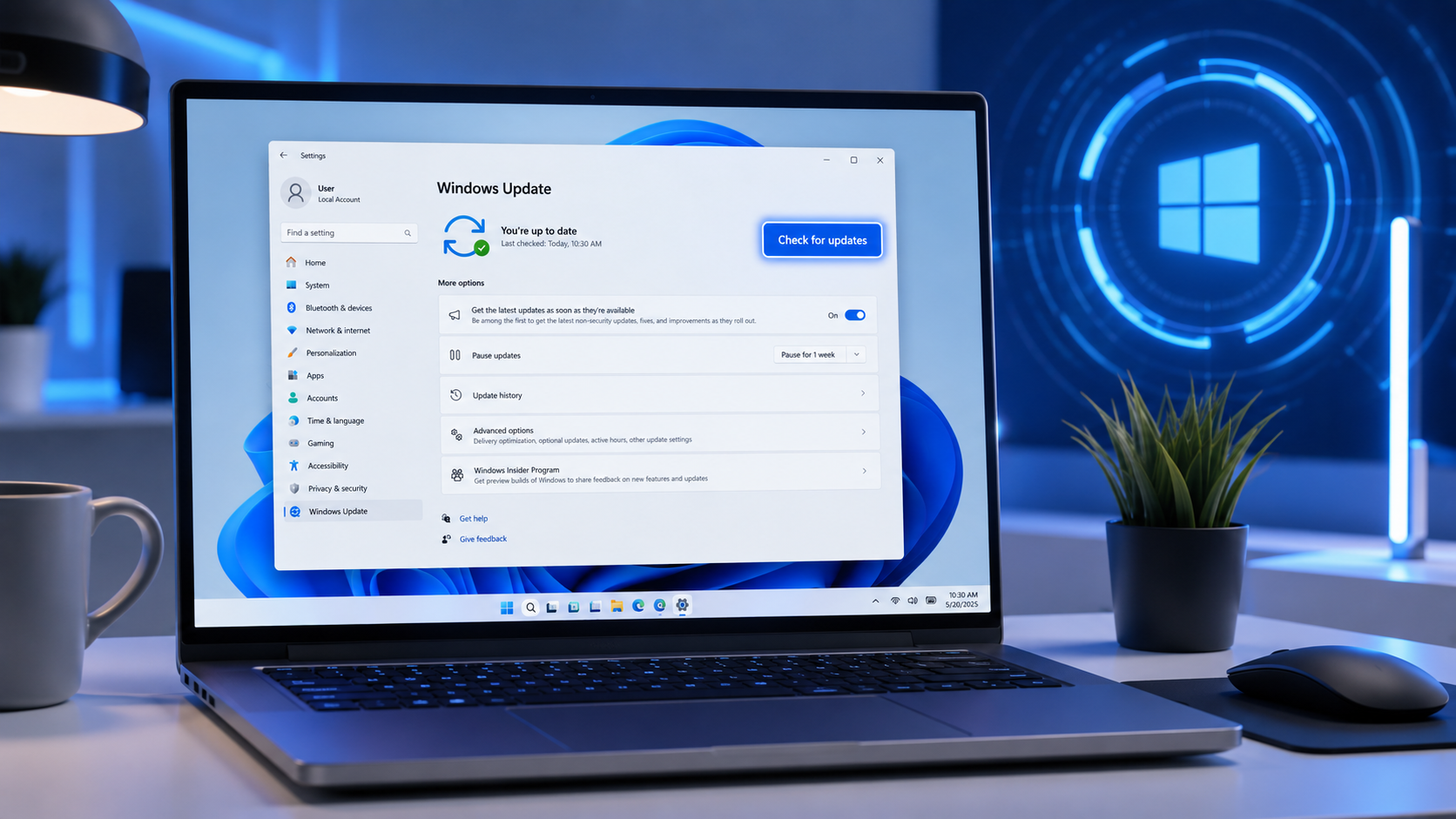
How to update windows 11, Keeping your Windows 11 PC up to date is one of the easiest ways to improve security, performance, and overall stability. Microsoft regularly releases updates that include bug fixes, security patches, new features, and performance improvements. Installing these updates ensures your computer stays protected against the latest threats while delivering the best possible experience.
If you’re new to Windows 11 or simply want to make sure you’re updating your system correctly, this guide will walk you through every step. You’ll also learn how to fix common update problems and check whether your PC is running the latest version.
Why You Should Update Windows 11
Windows updates are more than just new features. They play a major role in keeping your computer secure and reliable.
Updating Windows 11 helps you:
- Protect your PC from security vulnerabilities.
- Improve system performance.
- Fix software bugs and glitches.
- Receive new Windows features.
- Ensure compatibility with the latest applications and hardware.
Ignoring updates for a long time can leave your computer vulnerable to security risks and may cause software compatibility issues.
Things to Do Before Updating Windows 11
Before starting the update process, take a few minutes to prepare your computer.
Backup Important Files
Although Windows updates usually don’t affect personal files, creating a backup is always a good practice. Save important documents, photos, and work files to an external drive or cloud storage.
Ensure a Stable Internet Connection
Windows updates can be several gigabytes in size. A stable internet connection helps prevent download interruptions.
Keep Your Laptop Plugged In
If you’re using a laptop, connect the charger before installing updates. Losing power during installation can cause update failures.
Check Available Storage
Windows 11 requires free disk space to download and install updates. It’s recommended to have at least 20 GB of available storage.
How to Update Windows 11 Using Windows Settings
Updating Windows 11 through the Settings app is the easiest and safest method.
Step 1: Open Windows Settings
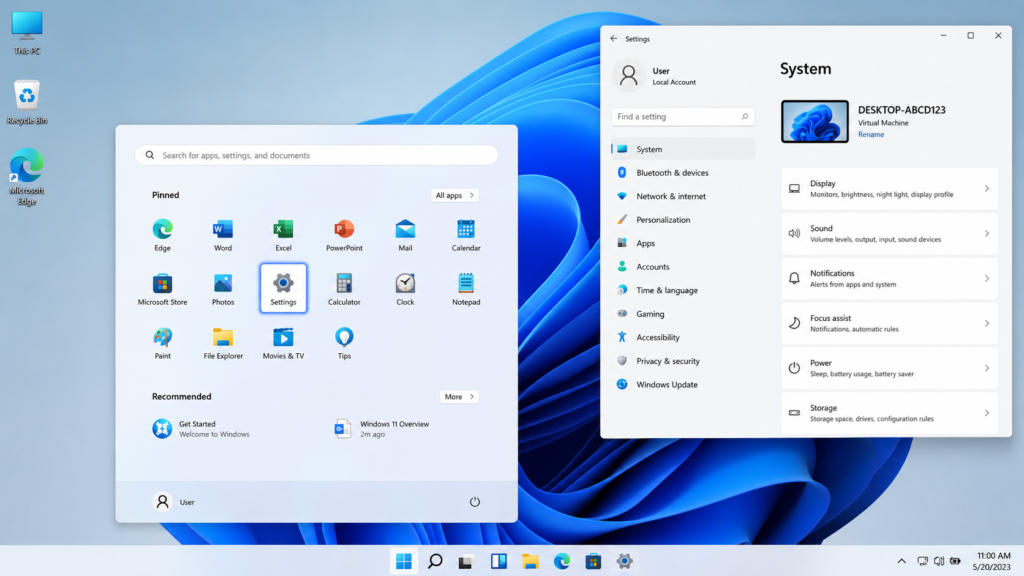
Press:
Windows + IThis keyboard shortcut opens the Windows Settings application.
Step 2: Open Windows Update
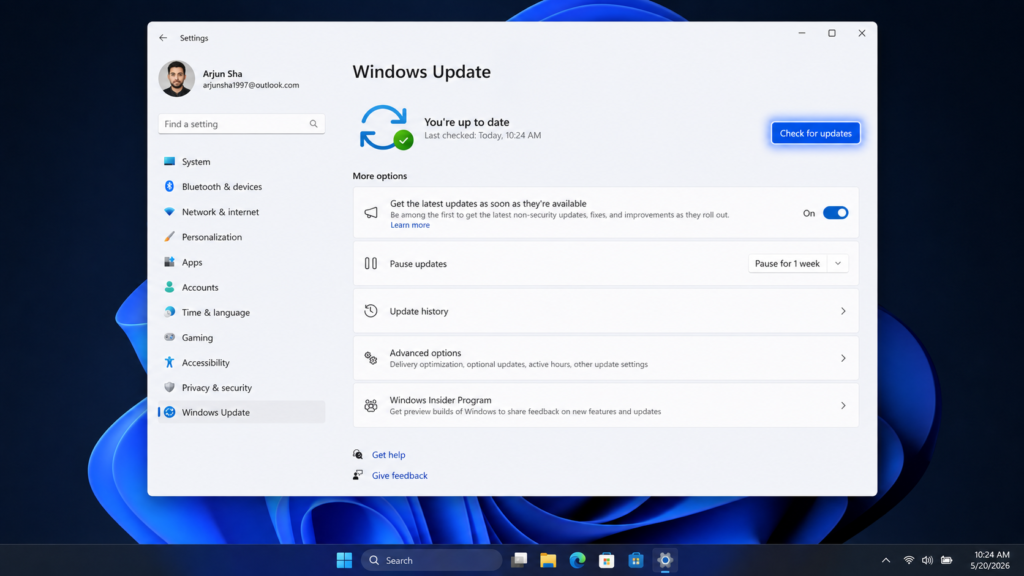
In the left sidebar, click:
Windows Update
This section displays your current update status.
Step 3: Check for Updates
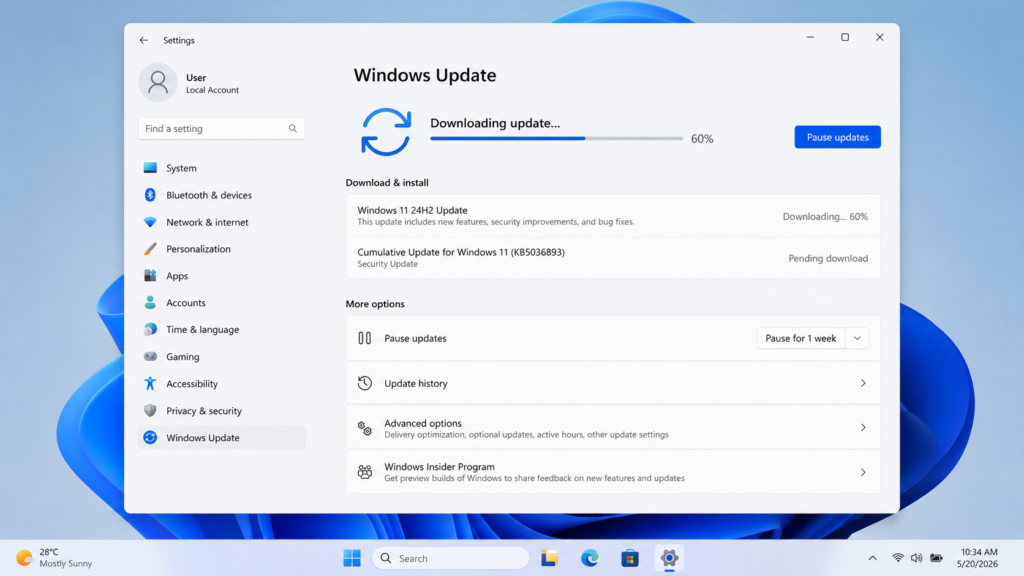
Click the Check for updates button.
Windows will search Microsoft’s servers for the latest available updates.
Step 4: Download Available Updates
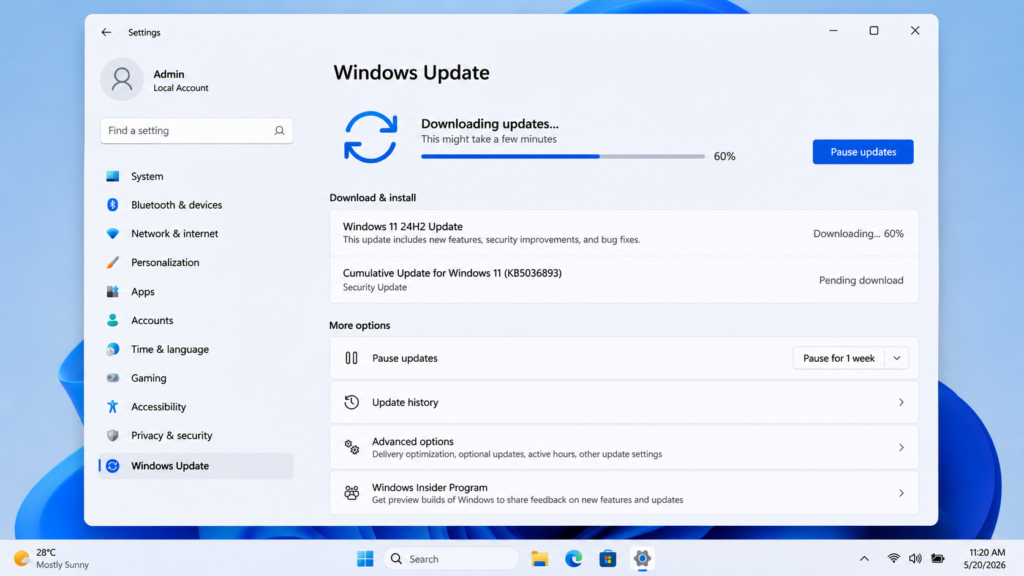
If updates are available, Windows will automatically begin downloading them.
Depending on the update size and your internet speed, this process may take several minutes.
Step 5: Install the Updates
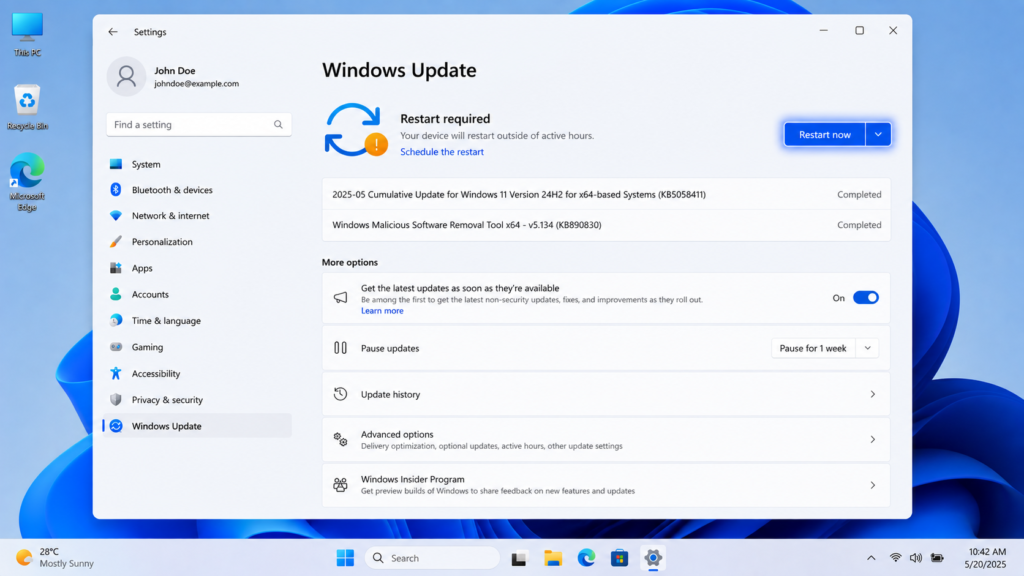
Once the download finishes, Windows will begin installing the updates.
Some updates install immediately, while larger feature updates may take longer.
Step 6: Restart Your Computer
When prompted, click Restart now.
Your PC will restart and complete the installation process.
Do not turn off your computer while updates are being installed.
How to Check Your Windows 11 Version
If you’re unsure whether your computer is running the latest version of Windows 11, you can check it in just a few seconds.
Press:
Windows + RType:
winverPress Enter.
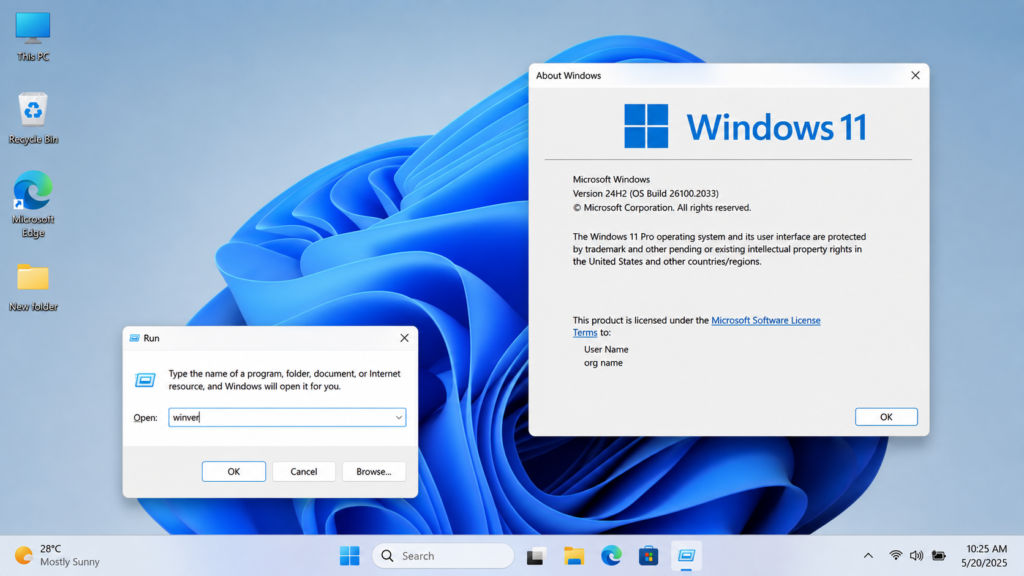
A small window will appear showing:
- Windows Edition
- Version Number
- OS Build
This information helps you confirm whether your system is fully updated.
How to Pause Windows 11 Updates
If you’re busy working or using limited internet data, you can temporarily pause updates.
- Open Settings.
- Select Windows Update.
- Find the Pause updates option.
- Choose how long you’d like to pause updates.
Windows allows updates to be paused for several weeks before requiring them to resume.
Common Windows 11 Update Problems and Solutions
Although Windows updates usually install without issues, occasional problems can occur.
Windows Update Is Stuck
If the update progress remains frozen for a long time:
- Wait at least 30 minutes.
- Restart your computer.
- Check your internet connection.
- Try updating again.
Windows Update Download Failed
Possible reasons include:
- Poor internet connection
- Insufficient storage
- Corrupted update cache
Restarting your PC and freeing up disk space often resolves the issue.
Windows Update Error Codes
Some common Windows Update errors include:
- 0x80070057
- 0x800f081f
- 0x8024402c
These errors can result from corrupted system files, network issues, or damaged update components. Microsoft’s built-in Windows Update Troubleshooter can often identify and fix the problem automatically.
How to Run the Windows Update Troubleshooter
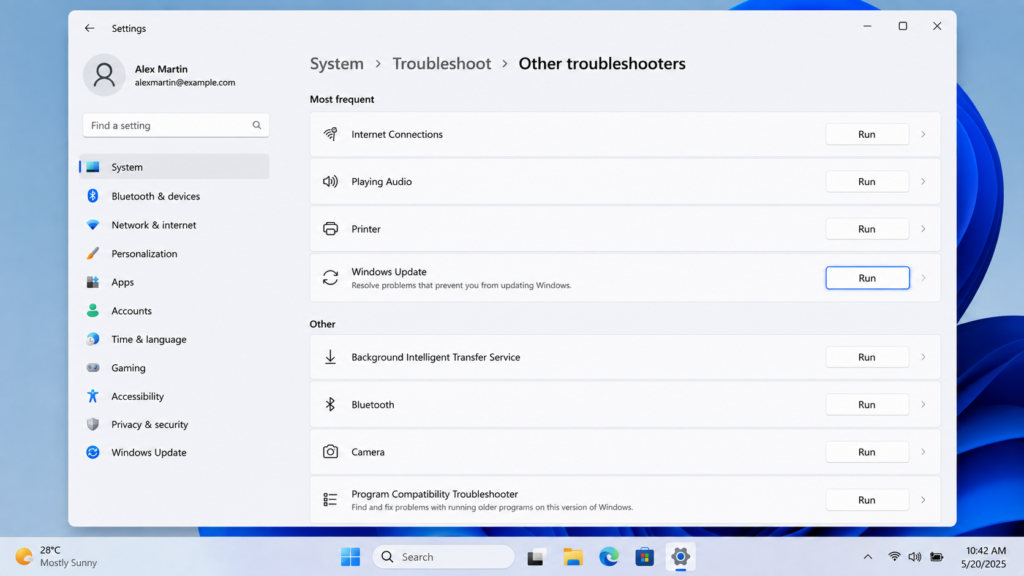
Windows includes a built-in tool for diagnosing update problems.
Follow these steps:
- Open Settings.
- Go to System.
- Click Troubleshoot.
- Select Other troubleshooters.
- Find Windows Update.
- Click Run.
The troubleshooter will scan for common issues and apply fixes if available.
Tips for Faster Windows 11 Updates
Updating Windows doesn’t have to take forever. These tips can speed up the process:
- Use a high-speed internet connection.
- Install updates regularly instead of waiting several months.
- Keep enough free storage space.
- Restart your PC before checking for updates.
- Close unnecessary applications during installation.
- Use an SSD instead of a traditional hard drive for faster installation times.
Is It Safe to Update Windows 11?
Yes.
Microsoft tests updates before releasing them to the public. While minor issues occasionally occur, installing official Windows updates is generally safe and recommended.
If your PC is used for business or important work, consider backing up your files before installing major feature updates.
Frequently Asked Questions
1. How often should I update Windows 11?
Microsoft releases security updates every month and feature updates periodically. Installing updates as they become available helps keep your system secure.
2. Will updating Windows 11 delete my files?
No. Standard Windows updates are designed to preserve your personal files, applications, and settings. However, maintaining regular backups is always recommended.
3. Can I use my computer while Windows is downloading updates?
Yes. You can continue using your PC while updates are downloading in the background. A restart is usually required only after the download and installation are complete.
4. How long does a Windows 11 update take?
Small updates may finish within 10–20 minutes, while larger feature updates can take 30–60 minutes or longer, depending on your hardware and internet speed.
5. Can I skip Windows updates?
You can temporarily pause updates, but skipping security updates for long periods is not recommended because it may expose your computer to security vulnerabilities.
Conclusion
Keeping Windows 11 updated is one of the simplest ways to maintain your computer’s security, stability, and performance. By regularly checking for updates and installing them promptly, you’ll benefit from the latest features, bug fixes, and security improvements provided by Microsoft.
Whether you’re a casual user or a professional, following the steps outlined in this guide ensures your Windows 11 PC remains reliable and protected. If you encounter update issues, the built-in troubleshooting tools and solutions covered above should help you get back on track quickly.
Suggested Internal Links
- How to Fix Windows Update Error 0x80070057
- How to Speed Up Windows 11
- How to Free Up Disk Space on Windows 11
- How to Reset Windows 11 Without Losing Files
- Best Windows 11 Settings for Better Performance
- How to Enable Windows 11 Dark Mode
Official Resources
For additional information and the latest updates, visit these official Microsoft resources:
- Windows Update: FAQ – https://support.microsoft.com/windows/windows-update-faq
- Windows 11 Support – https://support.microsoft.com/windows
- Windows Release Health Dashboard – https://learn.microsoft.com/windows/release-health/
- Windows Update Troubleshooter – https://support.microsoft.com/help/4027322/windows-update-troubleshooter
- Download Windows 11 – https://www.microsoft.com/software-download/windows11
Related Categories
Looking to learn more about technology? Explore these topics on Voltixaz:
Disclaimer
This guide is intended for educational purposes and is based on the latest publicly available information at the time of writing. Windows Update features and settings may change with future Windows 11 releases. Always refer to Microsoft’s official documentation before making significant system changes.
Need More Windows 11 Help?
If you found this guide helpful, you may also like these tutorials on Voltixaz:
- How to Fix Windows Update Errors
- How to Speed Up Windows 11
- How to Free Up Disk Space on Windows 11
- How to Reset Windows 11 Without Losing Files
- Best Windows 11 Settings for Better Performance
Final Tip
Keep Windows 11 updated regularly to receive the latest security patches, performance improvements, and new features. Making updates a routine part of your PC maintenance helps keep your system secure, stable, and running at its best.