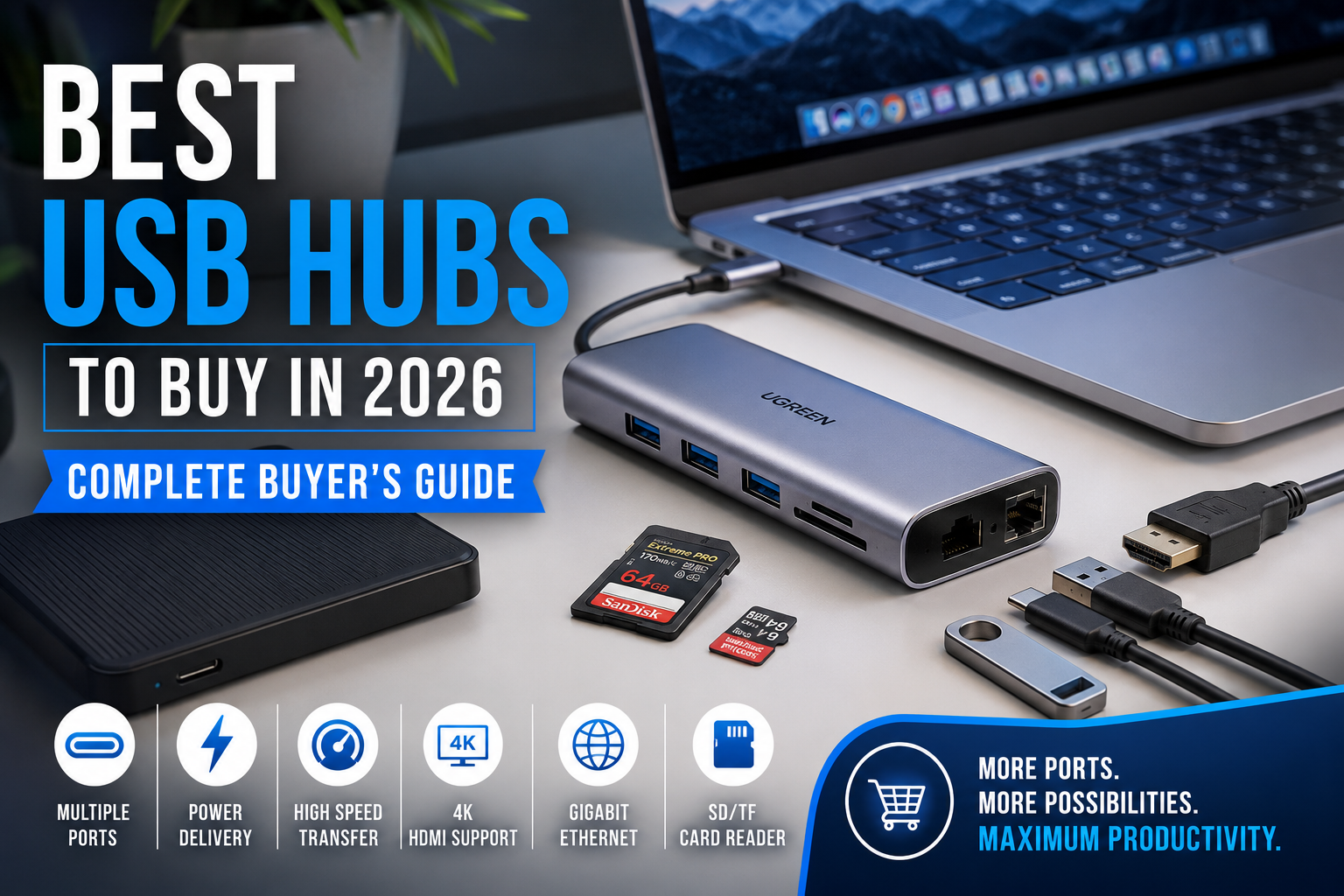
Modern laptops are becoming thinner, lighter, and more powerful than ever before. However, one feature continues to disappear from many devices: ports. Premium ultrabooks, gaming laptops, tablets, and even desktop mini PCs often provide only two or three USB-C ports, leaving users struggling to connect multiple accessories simultaneously.
Whether you’re connecting a keyboard, mouse, external SSD, monitor, webcam, printer, SD card, or charging cable, running out of ports is a common frustration. That’s where a high-quality USB hub becomes an essential accessory rather than just a convenience.
The best USB hubs in 2026 are more advanced than ever. They offer blazing-fast data transfer speeds, Power Delivery charging, HDMI output for multiple displays, Ethernet connectivity, SD card readers, and even support for 4K or 8K monitors. Choosing the right one can dramatically improve your workspace, whether you’re working from home, editing videos, gaming, or simply expanding the capabilities of your laptop.
This comprehensive buying guide explains everything you need to know before purchasing a USB hub. You’ll learn how USB hubs work, the different types available, essential features to consider, and how to choose the right model for your specific needs. By the end of this guide, you’ll be able to confidently invest in a USB hub that offers excellent performance, reliability, and long-term value.
Why Do You Need a USB Hub?
Many modern devices sacrifice ports in favor of thinner designs. While this improves portability, it limits connectivity.
Imagine working on your laptop while simultaneously needing to connect:
- External SSD
- Wireless mouse receiver
- Mechanical keyboard
- HDMI monitor
- USB microphone
- Webcam
- SD card
- Charging cable
Without a USB hub, constantly unplugging one device to connect another becomes frustrating and interrupts your workflow.
A quality USB hub solves this problem by expanding one USB port into several, allowing multiple devices to operate simultaneously.
For professionals, students, gamers, photographers, programmers, and content creators, a USB hub has become one of the most valuable desktop accessories available today.
How Does a USB Hub Work?
A USB hub acts like a central connection point between your computer and multiple peripherals.
Instead of plugging every accessory directly into your laptop, the hub communicates with the computer through a single USB connection while managing multiple connected devices simultaneously.
Think of it as a power strip—but for data connections instead of electrical outlets.
Modern USB hubs can support:
- External hard drives
- USB flash drives
- Monitors
- Ethernet
- SD cards
- Audio devices
- Keyboards
- Mouse
- Cameras
- Smartphones
- Printers
- Gaming accessories
Advanced models even allow charging your laptop while using all connected accessories through USB Power Delivery.
Types of USB Hubs
Not every USB hub is designed for the same purpose. Understanding the differences helps avoid buying the wrong device.
USB-A Hubs
USB-A hubs use the traditional rectangular USB connector found on millions of computers.
Best For
- Older laptops
- Desktop computers
- Office PCs
- Legacy accessories
Advantages
- Affordable
- Widely compatible
- Plug-and-play
- Great for keyboards, mice, printers, and flash drives
Limitations
- Slower compared to newer USB-C hubs
- Limited charging capability
- Usually fewer advanced features
If you mainly use older computers or desktop systems, a USB-A hub remains a practical and cost-effective choice.
USB-C Hubs
USB-C hubs have become the industry standard for modern laptops and tablets.
Most premium Windows laptops, MacBooks, Chromebooks, and tablets now rely almost entirely on USB-C ports.
A USB-C hub can add:
- USB-A ports
- HDMI
- DisplayPort
- Ethernet
- SD card readers
- Audio jack
- USB-C Power Delivery
- High-speed USB ports
These hubs effectively transform a single USB-C port into a complete workstation.
Powered USB Hubs
Powered hubs include their own external power adapter.
Instead of relying solely on laptop power, they supply dedicated electricity to connected devices.
This is especially useful when using:
- External hard drives
- SSDs
- Multiple webcams
- RGB accessories
- USB microphones
- Audio interfaces
Powered hubs provide greater stability and reduce the chance of disconnects caused by insufficient power.
Bus-Powered USB Hubs
These hubs receive power directly from your computer.
They are:
- Lightweight
- Portable
- Affordable
- Easy to carry
However, they are better suited for low-power accessories like keyboards, mice, USB drives, and card readers rather than high-power devices.
Thunderbolt Hubs
Thunderbolt hubs represent the premium category.
They offer exceptional bandwidth capable of handling:
- Multiple 4K monitors
- 8K displays
- Ultra-fast SSDs
- Professional editing equipment
- High-speed networking
Although significantly more expensive, Thunderbolt hubs are ideal for creative professionals who require maximum performance.
USB Standards Explained
One of the most confusing aspects of shopping for USB hubs is understanding USB versions.
Here’s a simplified comparison.
| USB Standard | Maximum Speed | Best Use Case |
|---|---|---|
| USB 2.0 | 480 Mbps | Keyboard, Mouse, Printer |
| USB 3.0 | 5 Gbps | External HDD, Flash Drive |
| USB 3.1 Gen 2 | 10 Gbps | SSD Storage |
| USB 3.2 | 20 Gbps | Professional Storage |
| USB4 | Up to 40 Gbps | High-end laptops |
| Thunderbolt 4 | Up to 40 Gbps | Video Editing & Workstations |
Higher speeds become important when transferring large files such as:
- 4K videos
- RAW photos
- Game installations
- Software backups
For basic office work, USB 3.0 is usually sufficient.
Professionals working with media files should consider USB 3.2, USB4, or Thunderbolt hubs.
Important Features to Look For Before Buying
Choosing a USB hub isn’t just about the number of ports. Several features determine whether a hub will meet your needs.
1. Number of Ports
Start by estimating how many devices you’ll connect regularly.
Common configurations include:
- 4-Port USB Hub
- 6-Port USB Hub
- 7-Port USB Hub
- 8-Port USB Hub
- 10-Port USB Hub
Buying a hub with one or two extra ports can help accommodate future accessories.
2. USB Port Types
Many users need a mix of old and new connectors.
A good USB hub should ideally include:
- USB-A
- USB-C
- HDMI
- Ethernet
- SD Card Reader
- MicroSD Reader
- Audio Jack
This combination offers maximum versatility for both work and entertainment.
3. Data Transfer Speed
If you frequently transfer files between external SSDs or hard drives, data speed is critical.
Approximate transfer times for a 50GB file:
| USB Version | Estimated Transfer Time |
|---|---|
| USB 2.0 | Over 20 minutes |
| USB 3.0 | Around 2 minutes |
| USB 3.2 | Less than 1 minute |
| Thunderbolt 4 | Seconds (device dependent) |
Choosing a faster hub can save hours over time, especially for photographers, videographers, and software developers.
4. Power Delivery (PD)
Modern USB-C hubs often support Power Delivery.
This allows the hub to charge your laptop while simultaneously connecting multiple accessories.
For example:
- Laptop charging
- External SSD
- HDMI monitor
- Keyboard
- Mouse
—all through a single USB-C cable.
Look for hubs supporting at least 65W to 100W Power Delivery if you own a power-hungry laptop.
5. HDMI Output
Many professionals require external monitors for increased productivity.
A USB hub with HDMI can support:
- 1080p displays
- 1440p monitors
- 4K monitors
- Dual-monitor setups (on supported hubs and devices)
Always check the supported refresh rate if you’re connecting gaming or high-refresh displays.
For office work, 4K at 60Hz is an excellent baseline.
6. Build Quality
USB hubs experience daily wear from frequent plugging and unplugging.
Premium models typically feature:
- Aluminum construction
- Braided cables
- Reinforced connectors
- Heat-resistant design
- Better internal circuitry
While plastic hubs may cost less, investing in durable materials often results in better longevity and reliability.
Quick Comparison of USB Hub Types
| Feature | USB-A Hub | USB-C Hub | Powered Hub | Thunderbolt Hub |
|---|---|---|---|---|
| Best for Older PCs | ✅ | ❌ | ✅ | ❌ |
| Best for Modern Laptops | ❌ | ✅ | ✅ | ✅ |
| High-Speed Storage | Good | Excellent | Excellent | Outstanding |
| Laptop Charging | ❌ | ✅ | Some Models | ✅ |
| External Monitor Support | Limited | Excellent | Excellent | Outstanding |
| Professional Work | Basic | Very Good | Excellent | Best |
| Price | Low | Medium | Medium-High | Premium |
Top USB Hubs to Buy in 2026
Now that you understand the different types of USB hubs and the features that matter, it’s time to look at some of the best options available. The products below have been selected based on build quality, performance, reliability, compatibility, and overall value. Rather than focusing only on specifications, this guide explains how each hub performs in everyday use.
1. Anker 555 USB-C Hub (8-in-1)
Overview
The Anker 555 USB-C Hub is one of the most balanced options on the market. It combines premium build quality with excellent connectivity, making it suitable for students, professionals, and creators alike.
With eight ports packed into a compact aluminum body, it transforms a single USB-C port into a complete workstation.
Key Specifications
| Feature | Details |
|---|---|
| Ports | 8 |
| HDMI | 4K @ 60Hz |
| USB-A | 2 × USB 3.2 |
| USB-C Data | Yes |
| USB-C Power Delivery | Up to 100W Pass-through |
| SD & microSD | Yes |
| Ethernet | No |
What We Like
The aluminum finish feels premium and matches modern laptops beautifully. Data transfers remain consistently fast, even when multiple devices are connected simultaneously.
Power Delivery works reliably, allowing compatible laptops to charge while using all connected accessories.
Heat management is also impressive, with only mild warmth during heavy file transfers.
Pros
✔ Premium aluminum construction
✔ Excellent transfer speeds
✔ Reliable Power Delivery
✔ Compact and travel-friendly
✔ Plug-and-play installation
Cons
✘ No Ethernet port
✘ Premium pricing
Best For
- MacBook users
- Students
- Remote workers
- Office professionals
- Everyday productivity
2. UGREEN Revodok USB-C Hub
Overview
UGREEN has become one of the most trusted accessory brands thanks to its dependable quality and competitive pricing.
The Revodok series offers an excellent balance between affordability and professional features.
Key Specifications
| Feature | Details |
|---|---|
| HDMI | 4K Output |
| USB-A Ports | 3 |
| USB-C PD | 100W |
| Card Reader | SD + microSD |
| Ethernet | Gigabit |
Why It Stands Out
One of the biggest advantages is its Gigabit Ethernet port, making it perfect for users who require stable wired internet.
Photographers will also appreciate the fast SD card reader when importing RAW photos.
The cable is flexible yet durable, and the compact size makes it easy to carry.
Pros
✔ Excellent value
✔ Fast Ethernet
✔ Reliable card reader
✔ Good thermal management
✔ Wide compatibility
Cons
✘ Short integrated cable
✘ No DisplayPort
Best For
- Content creators
- Photographers
- Office users
- Students
- Home offices
3. Baseus 9-in-1 USB-C Hub
Overview
If you frequently connect multiple accessories, the Baseus 9-in-1 hub offers an impressive number of ports without becoming excessively bulky.
It includes HDMI, Ethernet, Power Delivery, multiple USB ports, and memory card slots.
Key Specifications
| Feature | Details |
|---|---|
| Total Ports | 9 |
| HDMI | 4K |
| Ethernet | Gigabit |
| USB-A | 3 |
| USB-C PD | 100W |
| SD Reader | Yes |
Performance
During normal office work, the hub remains cool and stable.
Large file transfers between SSDs maintain consistent speeds without unexpected disconnects.
The Ethernet connection is stable enough for video conferencing, cloud backups, and online gaming.
Pros
✔ Large number of ports
✔ Great price
✔ Excellent compatibility
✔ Fast Ethernet
✔ Premium appearance
Cons
✘ Slightly larger than compact hubs
✘ HDMI limited depending on host device
Best For
- Home office
- Laptop users
- IT professionals
- Students
- Business users
4. Satechi USB-C Multiport Adapter
Overview
Satechi products are well known for their elegant design and premium construction.
This multiport adapter is especially popular among MacBook owners because it complements Apple’s minimalist aesthetic while delivering reliable performance.
Key Specifications
| Feature | Details |
|---|---|
| HDMI | 4K @ 60Hz |
| USB-A | 3 |
| USB-C PD | 100W |
| Ethernet | Gigabit |
| Card Reader | SD + microSD |
Everyday Experience
The adapter feels exceptionally well built.
Its aluminum enclosure helps dissipate heat effectively, and the ports remain firmly aligned even after extended use.
Users working with presentations, external monitors, or large file transfers will appreciate its stable performance.
Pros
✔ Premium design
✔ Excellent reliability
✔ Fast charging support
✔ Quality aluminum body
✔ Compact size
Cons
✘ Higher price
✘ Fewer USB ports than some competitors
Best For
- MacBook users
- Designers
- Business professionals
- Frequent travelers
5. TP-Link UH720 Powered USB Hub
Overview
Unlike portable USB-C hubs, the TP-Link UH720 is designed for desktop users who need stable power for multiple peripherals.
Its external power adapter allows it to support devices that require more electricity than a laptop’s USB port can provide.
Key Specifications
| Feature | Details |
|---|---|
| USB Ports | 7 USB 3.0 |
| Charging Ports | 2 Dedicated |
| External Power | Yes |
| Data Speed | 5 Gbps |
Why Choose It?
This hub is ideal for connecting:
- External hard drives
- USB microphones
- RGB keyboards
- Printers
- Audio interfaces
- Webcams
Because it supplies dedicated power, connected devices operate more reliably.
Pros
✔ Stable powered operation
✔ Dedicated charging ports
✔ Excellent desktop solution
✔ Reliable performance
✔ Great for multiple drives
Cons
✘ Not portable
✘ No HDMI
✘ No Ethernet
Best For
- Desktop PCs
- Recording studios
- Office setups
- Workstations
6. Belkin Connect USB-C Hub
Overview
Belkin has earned a strong reputation for producing dependable accessories that work well across Windows, macOS, ChromeOS, and tablets.
The Connect USB-C Hub focuses on reliability rather than flashy specifications.
Key Specifications
| Feature | Details |
|---|---|
| HDMI | 4K |
| USB-A | 2 |
| USB-C PD | 100W |
| SD Reader | Yes |
| Ethernet | Available on select models |
Real-World Performance
The Belkin hub excels during daily office work.
Whether transferring documents, connecting presentation displays, or charging a laptop during meetings, it performs consistently without random disconnects.
Pros
✔ Trusted brand
✔ Strong compatibility
✔ Reliable firmware
✔ Durable construction
✔ Good warranty
Cons
✘ Slightly expensive
✘ Fewer ports
Best For
- Business users
- Corporate offices
- Everyday productivity
7. Plugable USB-C Docking Hub
Overview
For professionals running multiple displays and numerous accessories simultaneously, Plugable offers workstation-grade reliability.
Its docking hubs are widely used in business environments.
Key Specifications
| Feature | Details |
|---|---|
| Dual Display Support | Yes |
| Ethernet | Gigabit |
| USB Ports | Multiple |
| Power Delivery | Yes |
| Audio | Yes |
Why Professionals Prefer It
Plugable products are designed with long-term reliability in mind.
They work exceptionally well for developers, engineers, financial analysts, and users managing multiple monitors.
Pros
✔ Excellent enterprise reliability
✔ Great documentation
✔ Multiple display support
✔ Stable networking
✔ High-quality construction
Cons
✘ More expensive
✘ Larger footprint
Best For
- Developers
- Corporate users
- Engineers
- Multi-monitor workstations
8. Hiearcool USB-C Hub
Overview
If you’re looking for an affordable yet capable USB-C hub, the Hiearcool USB-C Hub is a strong choice. It offers essential features like HDMI, USB-A ports, SD card slots, and Power Delivery at a budget-friendly price.
While it may not have the premium finish of higher-end models, it delivers dependable everyday performance for students and casual users.
Key Specifications
| Feature | Details |
|---|---|
| HDMI | 4K @ 30Hz |
| USB-A | 2 × USB 3.0 |
| USB-C PD | Up to 100W |
| SD & microSD | Yes |
| Ethernet | No |
Everyday Performance
The Hiearcool hub is lightweight and easy to carry, making it ideal for travel or hybrid work. It handles document transfers, presentations, and basic multimedia tasks without issue. However, it’s better suited to moderate workloads rather than constant heavy data transfers.
Pros
✔ Budget-friendly
✔ Compact and lightweight
✔ Good port selection
✔ Easy plug-and-play setup
✔ Ideal for students
Cons
✘ No Ethernet port
✘ HDMI limited to 4K at 30Hz
✘ Plastic build feels less premium
Best For
- Students
- Casual laptop users
- Travelers
- Home office setups
Side-by-Side Comparison of the Best USB Hubs
| Model | Ports | HDMI | Ethernet | Power Delivery | Best For |
|---|---|---|---|---|---|
| Anker 555 USB-C Hub | 8 | 4K @ 60Hz | No | 100W | Professionals & MacBooks |
| UGREEN Revodok | 7–8 | 4K | Yes | 100W | Content creators |
| Baseus 9-in-1 | 9 | 4K | Yes | 100W | Multi-device users |
| Satechi Multiport Adapter | 7 | 4K @ 60Hz | Yes | 100W | Premium laptop users |
| TP-Link UH720 | 7 + 2 Charging | No | No | N/A | Desktop workstations |
| Belkin Connect | 6–7 | 4K | Model dependent | 100W | Business users |
| Plugable Docking Hub | 10+ | Dual Display | Yes | Yes | Professional workstations |
| Hiearcool USB-C Hub | 7 | 4K @ 30Hz | No | 100W | Budget buyers |
Which USB Hub Offers the Best Value?
Choosing the best USB hub depends on how you plan to use it.
| User Type | Recommended Hub | Why It Stands Out |
|---|---|---|
| Students | Hiearcool USB-C Hub | Affordable and portable |
| Office Professionals | Anker 555 USB-C Hub | Reliable performance and premium build |
| Remote Workers | UGREEN Revodok | Ethernet plus versatile connectivity |
| Content Creators | Baseus 9-in-1 | Plenty of ports for cameras, drives, and displays |
| Desktop Users | TP-Link UH720 | Powered USB ports for stable connections |
| Business Professionals | Belkin Connect | Dependable and enterprise-friendly |
| Developers & Engineers | Plugable Docking Hub | Excellent for multi-monitor productivity |
| MacBook Owners | Satechi Multiport Adapter | Stylish design with reliable performance |
Expert Tips Before Choosing a USB Hub
Before making a purchase, think beyond the number of ports. Consider your current workflow and any future devices you may add. If you frequently connect external SSDs or edit large media files, prioritize USB 3.2, USB4, or Thunderbolt compatibility. If you often work with wired internet or multiple displays, choose a hub with Gigabit Ethernet and HDMI or DisplayPort support.
Also, remember that the capabilities of a USB hub depend on your laptop’s USB-C port. A hub cannot add features—such as video output or high-speed charging—that your device itself does not support.
Complete USB Hub Buying Guide
Selecting a USB hub might seem straightforward at first glance, but with dozens of models offering different combinations of ports, speeds, and features, making the right choice requires careful consideration. The ideal USB hub depends on your devices, your daily workflow, and your future needs.
Instead of choosing the cheapest option or the one with the highest number of ports, focus on how you actually use your computer. A well-chosen USB hub can improve productivity, reduce cable clutter, and eliminate the frustration of constantly plugging and unplugging accessories.
How to Choose the Right USB Hub
1. Identify Your Computer’s Available Port
Before purchasing any hub, check what type of USB port your laptop or desktop actually has.
Some devices include:
- USB-A only
- USB-C only
- USB-A and USB-C
- Thunderbolt 3
- Thunderbolt 4
- USB4
Buying a USB-C hub for a laptop with only USB-A ports—or vice versa—will require adapters and may limit functionality.
Expert Tip: Check your laptop’s specifications on the manufacturer’s website to confirm whether its USB-C port supports data transfer, Power Delivery, and video output.
2. Count the Devices You Use Every Day
Make a list of everything you typically connect.
For example:
| Device | Needed? |
|---|---|
| Mouse | ✅ |
| Keyboard | ✅ |
| External SSD | ✅ |
| Webcam | ✅ |
| HDMI Monitor | ✅ |
| Ethernet | ✅ |
| USB Microphone | ✅ |
| SD Card Reader | ✅ |
If you regularly connect six or seven accessories, buying a four-port hub will only create future limitations.
Choose a hub with at least two extra ports beyond your current requirements.
3. Decide Between Portable and Desktop Hubs
Portable USB hubs are ideal if you frequently travel or work from different locations.
Advantages include:
- Lightweight
- Compact
- Easy to carry
- No external power brick
Desktop powered hubs are better suited for permanent workstations.
Benefits include:
- Stable power
- Better support for external drives
- Multiple charging ports
- Improved reliability
4. Consider Data Transfer Requirements
Not everyone needs ultra-fast speeds.
Casual Users
If you mainly use:
- Keyboard
- Mouse
- Printer
- Flash drive
USB 3.0 is usually sufficient.
Professional Users
If you regularly work with:
- RAW photos
- 4K videos
- 8K footage
- Large software projects
- External SSDs
Choose USB 3.2, USB4, or Thunderbolt hubs.
The time saved during large file transfers can significantly improve your workflow.
5. Think About Future Upgrades
Many buyers only consider today’s needs.
However, over the next few years, you might purchase:
- Another monitor
- External SSD
- Mechanical keyboard
- Capture card
- Audio interface
- Streaming equipment
Buying a slightly more capable hub today often costs less than replacing it later.
USB Hub vs USB Docking Station
Many buyers confuse these two products.
Here’s how they differ.
| USB Hub | Docking Station |
|---|---|
| Adds extra USB ports | Creates a complete workstation |
| Compact | Larger |
| Affordable | More expensive |
| Basic expansion | Professional expansion |
| Portable | Usually desktop use |
| Ideal for everyday users | Ideal for professionals |
If your primary need is connecting additional USB devices, a USB hub is sufficient.
If you need multiple displays, Ethernet, audio, charging, and several peripherals simultaneously, a docking station may be the better investment.
Common Mistakes to Avoid
Many buyers end up disappointed because they overlook a few important details. Avoid these common mistakes to get the best value from your purchase.
Buying the Cheapest Hub Available
Extremely inexpensive USB hubs often compromise on internal components and build quality.
This can lead to:
- Slow transfer speeds
- Unstable connections
- Overheating
- Random device disconnects
- Short lifespan
Investing a little more in a reputable brand usually results in better reliability and long-term performance.
Ignoring Power Requirements
Bus-powered hubs rely on your computer’s USB port for electricity. While they work well for low-power accessories, they may struggle with:
- External hard drives
- Multiple SSDs
- Audio interfaces
- High-resolution webcams
If you use several power-hungry devices, choose a powered USB hub with its own power adapter.
Overlooking HDMI Specifications
Not all HDMI ports are created equal.
Some hubs support:
- 4K at 30Hz
Others support:
- 4K at 60Hz
For office work, either may suffice. However, if you edit videos, play games, or use high-refresh-rate displays, 4K at 60Hz provides a noticeably smoother experience.
Assuming Every USB-C Port Supports Video
One of the biggest misconceptions is that all USB-C ports can output video.
In reality, this depends on your laptop’s hardware.
Some USB-C ports support:
- DisplayPort Alt Mode
- HDMI output
- Charging
Others only handle data transfer.
Always verify your laptop’s specifications before purchasing a hub with video output.
Ignoring Build Quality
A USB hub is likely to be plugged in and unplugged hundreds of times throughout its life.
Look for:
- Aluminum casing
- Reinforced connectors
- Quality cable insulation
- Good strain relief
- Reputable manufacturer
A durable hub is less likely to fail after months of regular use.
Understanding Power Delivery (PD)
Power Delivery, often abbreviated as PD, is an important feature in modern USB-C hubs. It allows a compatible charger to pass power through the hub and charge your laptop while the hub is also handling data and peripherals.
Without PD, you may need to dedicate a separate charging port on your laptop, reducing the benefit of using a hub.
Here’s a general guideline:
| Laptop Type | Recommended PD |
|---|---|
| Chromebook | 45W |
| Ultrabook | 65W |
| Standard Windows Laptop | 65W–100W |
| MacBook Air | 67W |
| MacBook Pro | 96W–100W |
Always ensure your charger is capable of delivering the required wattage, as the hub itself cannot increase charging power.
Which USB Hub Is Right for You?
Different users have different priorities. Here’s a quick guide to help narrow down your options.
For Students
A compact USB-C hub with:
- 2–3 USB-A ports
- HDMI
- Power Delivery
This setup is affordable and ideal for online classes, presentations, and everyday study.
For Office Professionals
Look for:
- Gigabit Ethernet
- HDMI
- USB-A ports
- USB-C charging
- SD card reader (optional)
These features cover most office workflows and hybrid work setups.
For Content Creators
Video editors, photographers, and designers benefit from hubs with:
- USB 3.2 or Thunderbolt support
- Fast SD and microSD readers
- HDMI or DisplayPort
- Multiple high-speed USB ports
- Power Delivery
These features improve file transfer speeds and simplify connecting cameras, drives, and displays.
For Gamers
A gaming setup may require:
- Keyboard
- Mouse
- Headset
- Webcam
- External SSD
- Controller
Choose a hub with enough USB-A ports and stable data transfer. If you game on a laptop, HDMI output for an external monitor is also useful.
For Remote Workers
A good remote work hub should include:
- HDMI
- Ethernet
- USB-A ports
- Power Delivery
This allows you to connect a monitor, wired internet, keyboard, mouse, and charger using a single USB-C connection.
Who Should Buy This?
A USB hub is a worthwhile investment for anyone who regularly needs to connect more devices than their computer can accommodate.
Buy a USB Hub If You Are:
- ✔ A student attending online classes or working on assignments
- ✔ A remote worker using multiple peripherals
- ✔ A professional with limited laptop ports
- ✔ A photographer transferring files from SD cards
- ✔ A video editor using external SSDs and monitors
- ✔ A software developer with multiple accessories
- ✔ A gamer connecting controllers, webcams, and storage
- ✔ A business traveler who needs a compact all-in-one adapter
- ✔ A desktop user looking to expand USB connectivity
- ✔ A MacBook owner with only USB-C ports
If you only connect a mouse occasionally, a hub may not be necessary. However, for most modern laptop users, a USB hub quickly becomes an essential part of their daily setup.
Expert Recommendations
After evaluating the features, performance, and value of the hubs covered in this guide, here are our recommendations based on different needs:
| Category | Recommended Hub | Why We Recommend It |
|---|---|---|
| Best Overall | Anker 555 USB-C Hub | Excellent balance of ports, performance, and build quality |
| Best Budget Option | Hiearcool USB-C Hub | Affordable with essential features for everyday users |
| Best Value for Money | UGREEN Revodok | Strong feature set at a competitive price |
| Best for Professionals | Plugable Docking Hub | Reliable multi-monitor support and enterprise-grade performance |
| Best for Desktop Setups | TP-Link UH720 | Powered USB ports ensure stable connections |
| Best for MacBook Users | Satechi USB-C Multiport Adapter | Premium design and seamless compatibility |
| Best for Content Creators | Baseus 9-in-1 USB-C Hub | Versatile connectivity for cameras, SSDs, and displays |
| Best for Business Users | Belkin Connect USB-C Hub | Dependable performance with broad compatibility |
No single USB hub is perfect for everyone. The best choice depends on your workflow, the devices you use, and the features you value most. Prioritizing compatibility, build quality, and future expansion will help ensure your purchase remains useful for years to come.
Frequently Asked Questions (FAQ)
1. What is the difference between a USB hub and a USB docking station?
A USB hub primarily expands the number of USB ports available on your computer. A docking station offers much more, including multiple display outputs, Ethernet, audio ports, charging, and additional connectivity options. If you only need extra USB ports, a hub is sufficient. For a complete desktop workstation, a docking station is a better choice.
2. Can a USB hub charge my laptop?
Yes, but only if it supports USB Power Delivery (PD) and your laptop supports charging through its USB-C port. Most modern USB-C hubs offer pass-through charging ranging from 65W to 100W.
3. Does using a USB hub reduce transfer speed?
A quality USB hub does not significantly reduce speed. However, when several high-bandwidth devices are connected simultaneously, the available bandwidth is shared among them. Choosing a USB 3.2, USB4, or Thunderbolt hub minimizes this issue.
4. Are powered USB hubs better than bus-powered hubs?
Powered USB hubs are generally better for users connecting external hard drives, SSDs, audio interfaces, or multiple high-power peripherals. Bus-powered hubs are more portable and suitable for low-power devices such as keyboards, mice, and flash drives.
5. Can I connect an external monitor through a USB hub?
Yes, provided the hub includes an HDMI or DisplayPort output and your laptop’s USB-C port supports DisplayPort Alt Mode or Thunderbolt video output.
6. Will a USB hub work with a MacBook?
Absolutely. Most USB-C hubs are compatible with modern MacBooks. Models from brands like Anker, Satechi, UGREEN, and Belkin are particularly popular among macOS users.
7. How many devices can I connect at once?
This depends on the hub. Some compact hubs offer four ports, while desktop-powered hubs may provide seven to ten USB ports along with HDMI, Ethernet, SD card readers, and charging capabilities.
8. Is USB 3.0 fast enough in 2026?
For everyday tasks such as connecting keyboards, mice, flash drives, printers, and external hard drives, USB 3.0 remains more than adequate. Professionals handling large video files or high-speed SSDs may benefit from USB 3.2, USB4, or Thunderbolt.
9. Can I use a USB hub for gaming?
Yes. USB hubs work well for gaming accessories such as keyboards, mice, controllers, headsets, webcams, and external storage. Competitive gamers should choose a high-quality hub from a reputable brand to ensure stable performance.
10. Which USB hub is best for students?
A compact USB-C hub with HDMI, two or three USB-A ports, and Power Delivery is usually the best option for students. It provides enough connectivity for presentations, external storage, and online learning without adding much weight to a backpack.
11. Do USB hubs work with tablets and smartphones?
Many modern tablets and smartphones that support USB-C OTG (On-The-Go) can use compatible USB hubs. This allows users to connect USB drives, keyboards, mice, or even external displays, depending on the device’s capabilities.
12. How long does a good USB hub last?
A well-built USB hub from a trusted manufacturer can last five years or more with normal use. Choosing models with aluminum housings, reinforced connectors, and quality internal components helps ensure long-term reliability.
Final Verdict
As laptops continue to become thinner and more compact, USB hubs have evolved from optional accessories into essential productivity tools. Whether you’re a student attending online classes, a professional working from multiple locations, or a creator transferring large media files, the right USB hub can simplify your workflow and eliminate the constant hassle of limited ports.
The most important factors to consider are compatibility, port selection, transfer speed, build quality, and Power Delivery support. Spending a little more on a reliable hub from a reputable manufacturer often results in better performance, improved durability, and a longer lifespan.
If you’re looking for the best all-round option, the Anker 555 USB-C Hub delivers an excellent mix of speed, portability, and premium construction. Users seeking the best value should consider the UGREEN Revodok, while professionals managing multiple displays and demanding workloads will appreciate the capabilities of a Plugable Docking Hub. Budget-conscious buyers can confidently choose the Hiearcool USB-C Hub for everyday tasks.
Ultimately, the best USB hub is the one that matches your current needs while leaving room for future expansion. By evaluating your devices, understanding USB standards, and prioritizing reliable brands, you’ll be well-equipped to choose a hub that serves you efficiently for years to come.
Suggested Internal Link
- How to Choose the Right USB Flash Drive: Complete Buying Guide
- Best External SSDs for Speed and Reliability
- Top Laptop Accessories Every Professional Should Own
- Best Mechanical Keyboards for Work and Gaming
- How to Choose the Right Laptop Docking Station